Share This Article
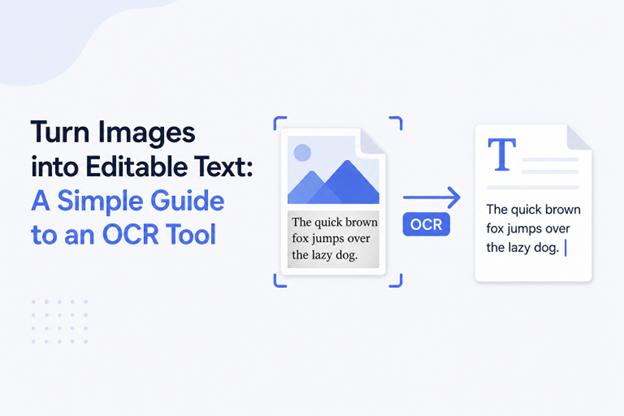
You may often need to reuse the information from an image. It could be a scanned document, a screenshot, or a photo of handwritten notes. The problem is that you cannot copy the details directly from the image.
The following are some of the common situations where you need to convert images into text.
- Convert photo notes into usable text
- Extract content from books or PDFs
- Save printed material in digital form
- Pull quotes from images
- Prepare content for reuse
With manual typing, the process gets hectic, and there are chances of mistakes. This is where OCR (Optical Character Recognition) tools become useful.
These tools scan the image and convert it into editable text. Let’s learn more about them below.
Table of Contents
A Brief Look at OCR Technology
OCR converts text in images, screenshots, or scanned documents into machine-readable text.
Thereafter, the text is made editable and searchable. That means you don’t need to type anything manually. This helps save a lot of effort.
This technology is available in various online tools to make it accessible for all users. Let’s see in the next section how it is making text extraction easier.
How OCR Tools Make Text Extraction Easy
The following are some of the most prominent ways in which OCR technology is making text extraction easier.
Quickly Detects Text from Images
OCR tools scan the image and detect the numbers, letters, and symbols easily and then convert them into editable text. All this can happen within seconds, depending on the text length.
Saves Time and Effort
You know, typing text from images generally feels hectic and repetitive. You have to reread the image text multiple times so that you don’t miss a word while typing.
However, this process feels easier with an OCR tool. It pulls the text out of images and gives you editable text without the need to type a single word.
Reduces Errors
Manual typing often leads to mistakes. You can miss punctuation or misspell a word. Such errors can give incorrect results. OCR tools help prevent mistakes and give accurate results most of the time. This method helps save time.
It Makes Editing Simple
You may see an image-based post on social media, and you need to reuse that in a slightly different way. So you can use an OCR tool to pull out the text from the image. Edit and repurpose it in your own way and post it. This makes the editing easier and saves time.
Working Principle of an OCR Tool
Now that we have discussed how OCR tools make text extraction easy. Let’s see the working principle of an OCR tool.
Upload the image
First, the tool takes the image. It can be a scanned document or a photo. This step is initiated by a user who inserts a picture using the given options, such as drag and drop, pasting the image URL, or uploading from the device.
Pre-processing
Then the image is cleaned. Smudges are reduced. Text is straightened if needed. The goal is to verify that the image is ready to undergo the upcoming stage.
Segmentation
Next, the tool splits the image and separates the lines, words, and characters. This process helps the tool understand the structure of the image more accurately. It helps ensure the final output is clear.
Recognition of Pattern
The tool analyzes the shapes of characters present in the image. It then compares them with the recognized patterns.
Text Reconstruction
This stage involves rearranging the text. The tool presents the extracted text as the ultimate result that users may copy or download.
How to Use an OCR Tool
Using an OCR tool is simple and doesn’t require you to go through any complicated steps. The following are the simple steps to use such a tool.
Open the tool
Open your web browser and search for an OCR tool or image-to-text converter. Make sure you select one that gives reliable results.
For demonstration, we selected Prepostseo’s Image to Text tool because it delivered quick and consistent results during our testing.
Upload Your Image
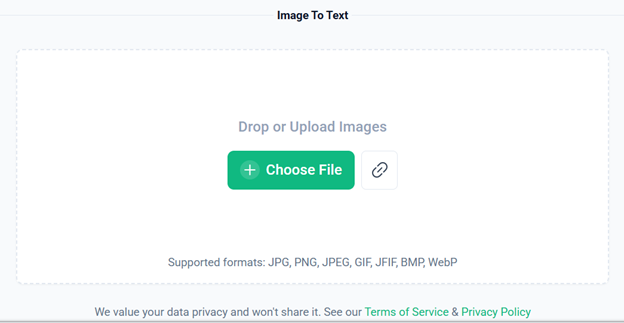
After opening the tool, click on the “Choose File” button to upload your image to the OCR tool.
Extract the text
Once you upload your image into the tool, you’ll get the option to “Extract Text.” Click on it.
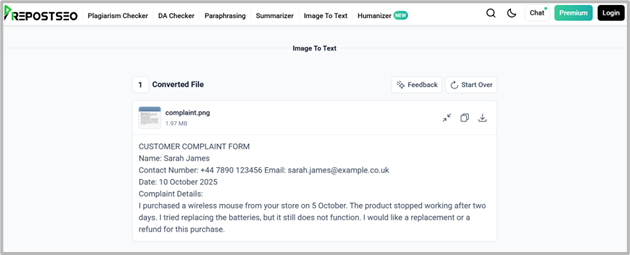
The tool will take a few seconds (depending on the length of the input text) to convert the image text into editable text.
Review the Extracted Text.
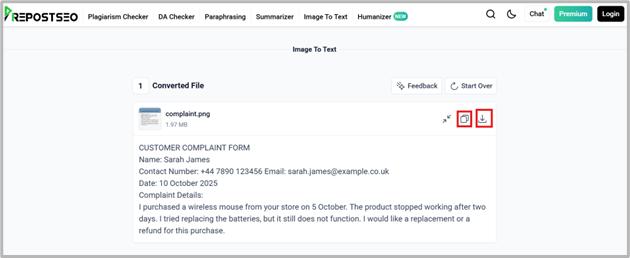
After getting the tool’s output, you should take some time to review it carefully and make any edits (if required). Once you are sure that the details are correct, you can copy or download the extracted text easily, as shown in the image below.
This is how you can use an OCR tool to get text from images without typing anything. It saves time and reduces manual effort.
Summing Up
You may often need to convert images into editable text. Doing such tasks manually may consume much time and effort. Additionally, there are still chances of mistakes. This process becomes much easier with the help of an OCR tool. It quickly scans the text from an image and converts it into editable and searchable text. After a quick overview of the tool’s output, you can use the text. This saves time and effort and makes your daily tasks much easier.