Share This Article
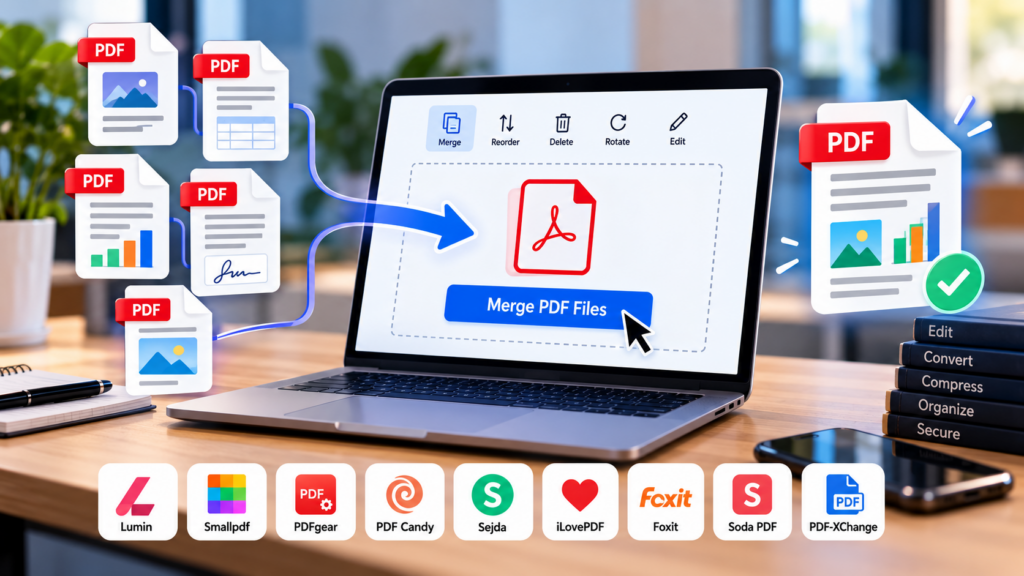
Merging PDF files should be simple, but the job isn’t always finished when you press the merge button. A report may contain pages of different sizes, a scanned document may have text that’s difficult to read, or a signed form may include interactive elements that need to be checked after the files are combined.
The right PDF merger can make document management easier, especially when you’re handling contracts, research, invoices, or lengthy business reports. Not every tool offers the same level of control: some focus on quick browser-based merging, while others let you select individual pages, reorder documents, or continue editing after the merge.
Here are nine PDF tools to consider, what makes them different, and how to choose one that fits your workflow.
Table of Contents
How to Choose a PDF Merger
Before comparing tools, think about what you need from the finished document.
- Formatting preservation: Text, images, tables, and page layouts should remain readable. However, preserving the appearance of a page is not the same as preserving every interactive feature. Check bookmarks, hyperlinks, form fields, and digital signatures when they matter.
- Page-level control: If you only need selected sections from a large collection of documents, look for a tool that lets you select, remove, or reposition individual pages.
- Privacy and file limits: Some online tools process files in a browser, while others upload documents to remote servers. Review the provider’s privacy information before using confidential files, and check upload and usage limits.
- Extra features: OCR, compression, annotations, and conversion can help when merging is only one part of a larger document workflow. For more ideas on organizing files and streamlining document work, read TechPluto’s guide to document organization and workflow tools.
9 PDF Tools to Consider
1. Lumin: For Cloud-Based Document Work
Lumin is a cloud-based PDF platform with tools for merging, editing, and collaborating on documents. Users can upload multiple files, arrange them, and combine them through a browser without installing a desktop application.
Its cloud-based approach can be convenient when documents are already stored online and need to be shared or edited as part of a team workflow.
Best for: People who regularly work with shared documents and prefer cloud-based tools.
Before you choose: Lumin’s online merger has listed upload limits, which may change. Check the current limits and download requirements before working with larger files.
Visit the official Lumin PDF merger.
2. Smallpdf: For Quick, Everyday Merging
Smallpdf focuses on everyday PDF tasks such as merging, compression, and conversion. Its browser-based merger supports PDFs and, depending on the workflow, other file types such as images and office documents.
You can arrange or remove pages before creating the final file, which is useful when preparing a proposal, combining invoices, or assembling attachments for email.
Best for: Anyone who wants a simple online workflow without learning a full-featured editor.
Before you choose: Review current usage limits and privacy information before processing large or confidential documents.
Visit the official Smallpdf merger.
3. PDFgear: For Page Selection and Editing
PDFgear combines PDF merging with editing and page-organization tools. Its product information describes options for rearranging pages and, in supported desktop versions, selecting page ranges.
The provider also says its online merger processes files locally in the browser. If privacy is important, check the details of the specific feature you plan to use and distinguish local merging from optional online services.
Best for: Users who want page-level organization and additional editing options.
Before you choose: Features can vary by platform. Confirm that the version you use supports any required OCR, page selection, or offline workflow.
Visit the official PDFgear PDF combiner.
4. PDF Candy: For a Collection of PDF Utilities
PDF Candy brings together tools for merging, converting, compressing, and managing PDFs. This can help when files need preparation before they are combined.
For example, you may need to convert a document into PDF format and then compress the finished file for sharing. Having multiple utilities in one service can reduce the need to switch between applications.
Best for: People who need several PDF operations, not just merging.
Before you choose: Check current file-size limits, desktop features, and free-plan restrictions if you expect to use it regularly.
Visit the official PDF Candy website.
5. Sejda: For More Control Over Page Layout
Sejda offers online and desktop PDF tools, including merging and page rearrangement. Working with individual pages is useful when you’re combining documents from different sources.
You might need the introduction from one report, selected pages from another, and an appendix at the end. Reordering the material before merging makes it easier to produce a coherent final document.
Best for: Documents that need page selection or rearrangement before merging.
Before you choose: Free-use limits may apply to task frequency, file sizes, or page counts. Review the current terms if you regularly work with long documents.
Visit the official Sejda PDF merger.
6. iLovePDF: For Routine Document Management
iLovePDF provides an online merger that combines PDFs in the order you choose. Its drag-and-drop interface makes it suitable for basic document assembly, such as bringing together a project report, a supporting invoice, and an appendix.
Its wider collection of utilities can also help if you need to compress or convert the output.
Best for: Everyday tasks involving reports, invoices, and other paperwork.
Before you choose: Review current plan limits and file-handling policies, particularly when processing business documents.
Visit the official iLovePDF merger.
7. Foxit PDF Editor: For Professional Document Workflows
Foxit PhantomPDF was the former name of Foxit’s PDF editing software, now known as Foxit PDF Editor. Its document-organization tools support combining files, selecting pages, and rearranging content.
The desktop software also offers tools for working with bookmarks and document structure, which can matter when preparing contracts, technical reports, or other complex PDFs.
Best for: Professionals who regularly produce, edit, and manage complex PDFs.
Before you choose: Compare the online merger with the desktop editor. Advanced features and subscription requirements may differ.
Visit the official Foxit PDF tools.
8. Soda PDF: For Online and Desktop Options
Soda PDF offers PDF merging alongside other document operations, including editing and conversion. A broader set of tools can be useful when a file needs to be combined with supporting material and then reviewed before it goes to a client.
The right version will depend on which features you need and whether you prefer working in a browser or on a desktop.
Best for: Users who want a broader PDF workflow rather than a single-purpose merger.
Before you choose: Check which features are available online, what current plans include, and whether desktop access suits your needs.
Visit the official Soda PDF website.
9. PDF-XChange Editor: For Windows Desktop Users
PDF-XChange Editor is a Windows desktop application for users who regularly edit and annotate documents.
Merging may be only one step in preparing a report: you may also need to review annotations, organize pages, or make other supported changes before sharing the final file. Its desktop-first approach may suit people who prefer installed software over a browser-only workflow.
Best for: Windows users who need PDF editing and document-organization capabilities.
Before you choose: Confirm which merging and editing features are included in the license or version you plan to use.
Visit the official PDF-XChange Editor website.
How Do These PDF Tools Compare?
The most useful distinction is not which tool has the longest feature list, but how well its features match your needs.
| Tool | Main Reason to Consider It | Suitable Workflow |
|---|---|---|
| Lumin | Cloud-based document work | Online collaboration |
| Smallpdf | Straightforward merging | Everyday PDF tasks |
| PDFgear | Page-level control and editing | Document organization |
| PDF Candy | Multiple PDF utilities | Conversion and preparation |
| Sejda | Page arrangement and selection | Combining selected sections |
| iLovePDF | Simple file ordering | Routine document assembly |
| Foxit PDF Editor | Advanced document organization | Professional workflows |
| Soda PDF | Broader PDF functionality | Merging and follow-up editing |
| PDF-XChange Editor | Desktop editing capabilities | Windows-based document work |
These are practical use-case distinctions, not results from a controlled performance test. They should not be interpreted as a ranking of formatting preservation, speed, or overall quality.
Preventing Formatting Issues After Merging
Even when you use a reliable PDF merger, reviewing the finished document is important. Follow these checks before sharing the combined file.
- Check page order: Make sure the cover page, main content, and appendices appear in the intended sequence.
- Check different page sizes: If the files contain both A4 and letter-sized pages, confirm that the document remains easy to read and print.
- Inspect scanned pages: Zoom in on small text, tables, and images. Merging will not automatically improve a page that was blurry beforehand.
- Test interactive elements: If the source documents contain forms, bookmarks, hyperlinks, or electronic signatures, verify that the elements you need still work.
- Consider privacy before uploading: For sensitive documents, check whether the service uploads files to its servers or processes them locally. Choose a workflow that meets your organization’s requirements.
These checks are particularly important when combining contracts, financial records, research documents, or reports that will be shared with clients.
Final Thoughts
The best PDF merger depends on the documents you handle and how much control you need over the final file. Smallpdf and iLovePDF are worth considering for straightforward online tasks, while PDFgear and Sejda offer useful options for page organization. Lumin may suit cloud-based workflows, and more comprehensive applications such as Foxit PDF Editor and PDF-XChange Editor can be useful when editing is part of the job.
If you’re looking at the wider document workflow too, TechPluto’s guide to essential tools for document organization and workflow covers related areas such as cloud storage, OCR, collaboration, and PDF editing. You can also explore its office productivity tools guide for broader ways to organize everyday work.
Before choosing a tool, compare its current features, limitations, and privacy practices. Most importantly, inspect the finished PDF rather than assuming every element has transferred perfectly. A good merging workflow should leave you with a document that is organized, readable, and ready to share—not another file that needs fixing afterward.