Imagine opening Outlook one morning to find your emails, contacts, and calendar entries gone—or worse, the app won’t even start. That’s the nightmare of a corrupt PST file, and it can hit anyone, from freelancers to business owners, costing you time and critical data. But don’t worry— repairing a Corrupt PST File Using Stellar Repair for Outlook is simpler than you think. This guide walks you through the process with easy steps to recover your Outlook data using Stellar Repair for Outlook, a powerful tool trusted by millions. Whether you’re dealing with missing emails or a crashed inbox, learning to Repair a Corrupt PST File Using Stellar Repair.
In this post, we overview and conclude Stellar Repair for Outlook, a best Outlook PST Repair software from the perspective of renowned technology review websites, Microsoft MVPs, tech community forums, and users.
Also Read: How to Encrypt Email
Table of Contents
What is a PST File?
A PST file is Outlook’s storage bin for your life—emails, attachments, calendars, contacts, tasks, notes, the works. When you’re not on Exchange or IMAP, it’s where everything lives. But when it corrupts, you’re screwed. You lose access to critical stuff, and if you’re in business, that means lost deals, missed deadlines, and pissed-off clients. A small firm lost a $10,000 contract because their PST crapped out. That’s why knowing how to Repair a corrupt PST File Using Stellar Repair for Outlook is non-negotiable—it’s not just a file; it’s your digital brain.
Why Do PST Files Become Corrupt?
PST files don’t corrupt for fun—they break because of dumb stuff or bad luck. Here’s the rundown:
- Size Overload: Old PSTs cap at 2GB, new ones at 50GB. Push it, and it blows up. A user lost three months of emails hitting 55GB.
- Crashes: Power outage or Outlook freezing mid-save? Boom, corruption. A pro lost a week’s work this way.
- Malware Attacks: Viruses love PSTs. One hacker encrypted a company’s file, demanding $5,000 in ransom.
- Disk Issues: Bad hard drive sectors nuke data. A laptop failure wiped a freelancer’s contacts.
- Software Clashes: Faulty add-ins or updates mess with PSTs. An update bug cost a business $2,000 in recovery.
These are the usual suspects. But don’t worry— Stellar handles them all like a pro.
Why Use Stellar Repair for Outlook?
Microsoft’s ScanPST is a joke—it’s like using a butter knife to cut steak. Stellar Repair for Outlook is the chainsaw you need. Here’s why it’s the king:
- Tackles the Tough Ones: Repairs massive, encrypted, or trashed PSTs. A company recovered a 30GB monster that ScanPST couldn’t touch.
- Gets Everything Back: Emails, attachments, calendars, contacts—nothing left behind. Keeps folders and metadata intact.
- Preview First: See what’s recovered before saving. A user avoided a $1,000 mistake by previewing.
- Exports Anywhere: Save to new PST, EML, MSG, PDF—the works.
- Outlook Friendly: Works with 2021,2019 and back to ancient versions.
Stellar’s not cheap, but it’s worth every penny to repair a Corrupt PST File.
Step-by-Step Guide: How to Repair a Corrupt PST File Using Stellar Repair for Outlook
Ready to fix your mess? Here’s How to Repair a Corrupt PST File Using Stellar Repair for Outlook in simple steps:
1. Download and Install: Grab Stellar from their site. Windows-only. Install in 5 minutes—no tech wizardry needed.
2. Launch It: Open the app. Clean interface—select your PST.

3. Find the File: Launch the software and from the main interface window, click on the Browse or Find option to select and locate the PST file you want to repair.
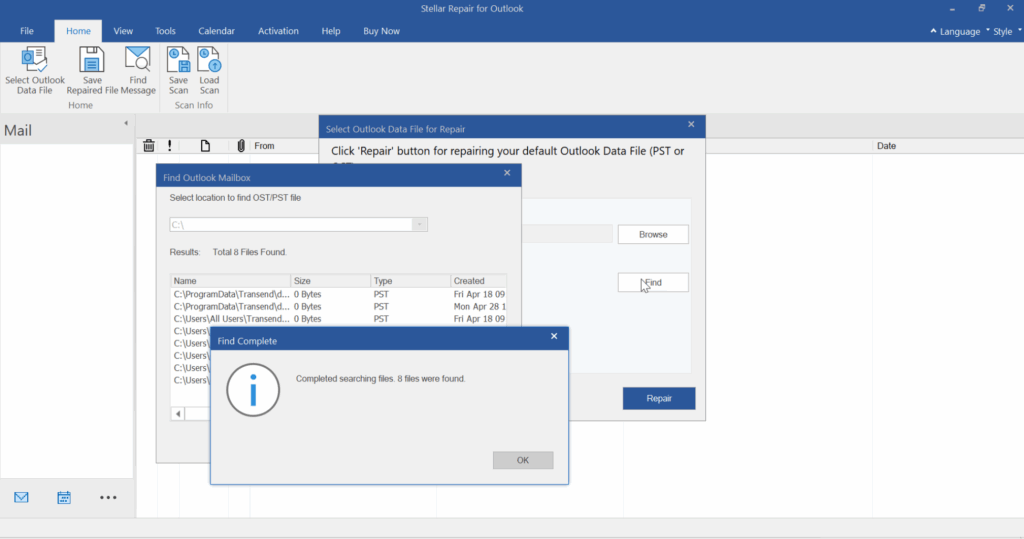
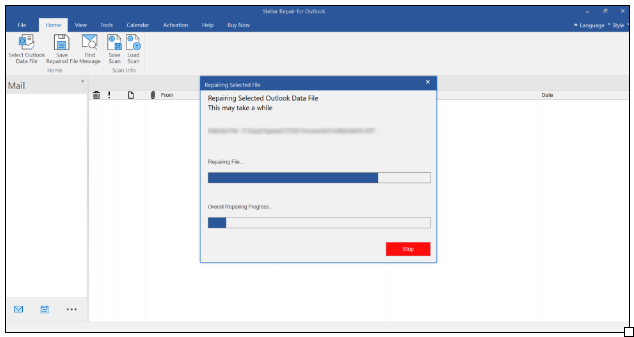
3. Hit Repair: Click “Repair” and let it run. Once the PST file is selected, click on the Repair button to begin the scan and repair process. For a 20GB file, it might take 45 minutes—go grab lunch.
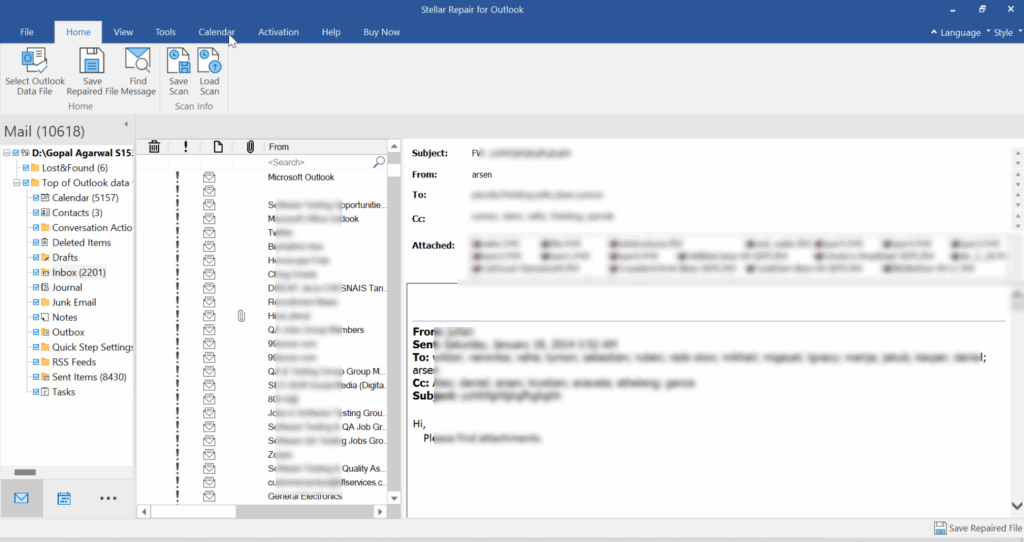
4. Preview Your Stuff: Stellar shows a full preview. Check emails, attachments, calendars—make sure it’s all good.
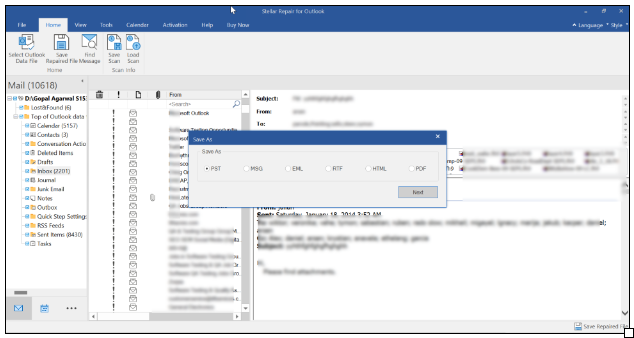
5. Save It: Pick PST or other formats like MSG, EML, RTF, PDF & HTML. Choose a spot and save. Import to Outlook, and you’re golden.
A small business recovered $15,000 in client emails this way.
Tips to Prevent PST Corruption in the Future
Fixing corruption is good, but preventing it is better. Here’s how:
- Keep Files Small: Archive old emails. A 4GB limit kept a freelancer’s PST healthy.
- Close Properly: Shut Outlook before powering down. A crash cost a user $300 in recovery.
- Antivirus Up: Run scans to block malware. A virus wiped $800 PST.
- Update Everything: Keep Outlook and Windows fresh. An update bug cost a business $1,000.
- Backup Weekly: Use OneDrive or external drives. A backup saved a firm $2,000 in lost data.
Frequently Asked Questions (FAQs)
- Can Stellar Recover Deleted Emails? Yes, if they’re not overwritten. A user got back a month of trashed emails.
- Is Stellar Safe? Yes, it doesn’t mess with your system—just fixes your PST.
- How Long Does Repair Take? Minutes for small files, hours for big ones. A 40GB repair took 1.5 hours for one pro.
- Free Trial? Yes, scan and preview for free; saving needs the license.
- Outlook Versions? Works with 2019 back to old ones.
Conclusion
Corrupt PST files are a nightmare, but How to Repair a Corrupt PST File Using Stellar Repair for Outlook is your silver bullet. From recovering emails and attachments to handling encrypted giants, Stellar does what Microsoft’s tool can’t. A small business recovered $10,000 in lost data with it. Don’t wait for a crash—grab Stellar, back up your files, and keep your Outlook running smooth. Your business, your data, your rules.